Org unit assignment with user groups in Airtable
Last updated: August 10, 2026
Plan availability | Enterprise Scale plans only |
Permissions |
|
Platform(s) | Web/Browser, Mac app, and Windows app |
Related reading | |
Airtable terminology |
|
Connecting user groups to org units
An org unit can be connected to multiple user groups. A user is only required to be a member of one connected user group to be assigned to the org unit.
Changes to connected user groups automatically apply to the org unit’s membership.
To connect a user group to an org unit, the user group must belong to the unassigned org unit.
To control org unit assignments with SCIM, we recommend pushing groups to Airtable through SCIM before connecting groups to org units.
To connect user groups to an org unit:
Open your admin panel.
Click Organization.
Search for and locate the organization you want to connect to your preferred user group.
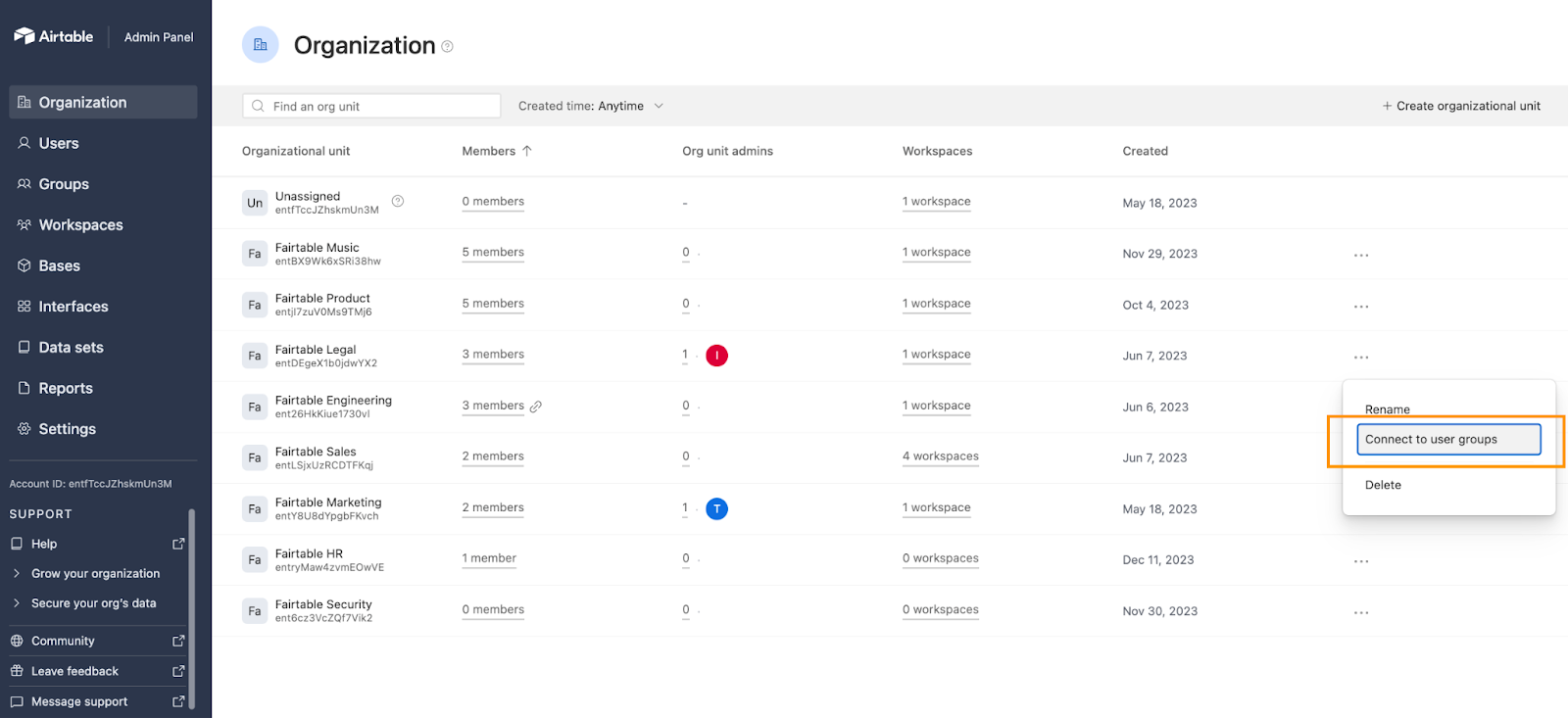
Click the … icon next to the org unit’s name.
Click Connect to user groups.
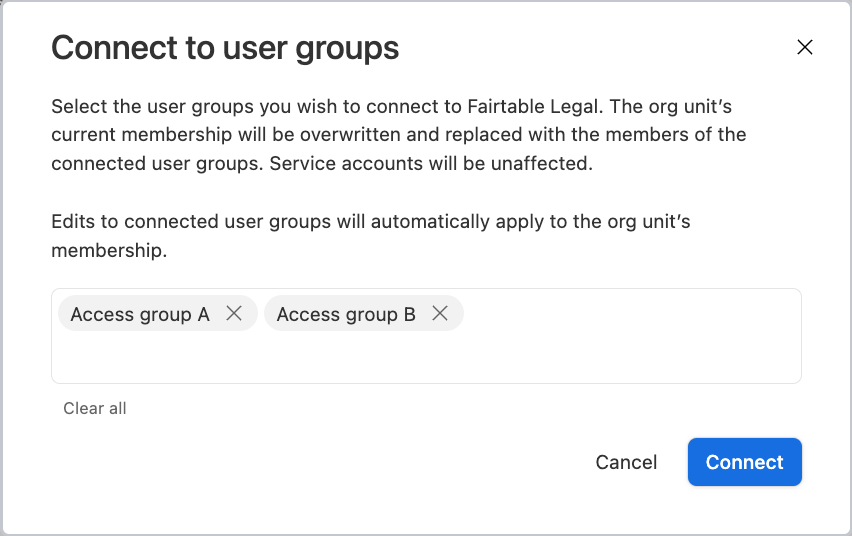
Search for and select the user group you want to connect your preferred org unit.
Click Connect.
Once the user group(s) is connected to your preferred org unit:
The org unit's current members' list is overwritten.
All users that belong to a connected user group become members of the assigned org unit.
The org unit's membership setting will change to "Connected to user group."
The org unit's membership setting cannot change until all user groups are disconnected from the org unit.
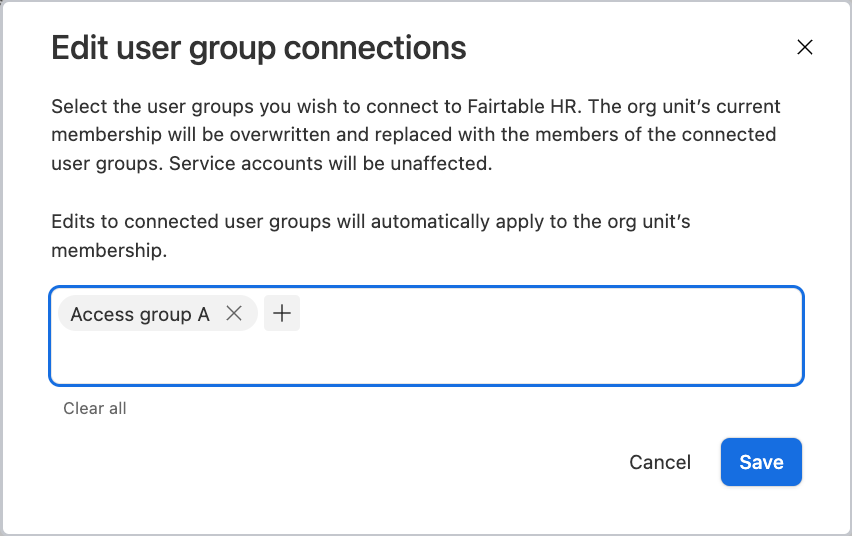
Editing existing user group connections
To edit existing user group connections:
Visit your admin panel.
Click Organization.
Click the … icon next to the org unit’s name already connected to the assigned user groups.
Click Edit user group connections.
Add or remove your preferred group connections.
Click Save.
Disconnecting all user groups from an org unit
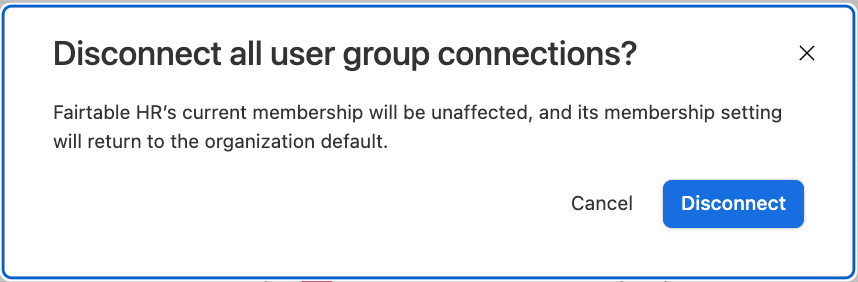
To disconnect all user groups from a single org unit:
Visit your admin panel.
Click Organization.
Click the … icon next to the org unit’s name already connected to the assigned user groups.
Click Disconnect from user groups.
Click Disconnect.
Users in disconnected user groups retain org unit membership and can be assigned/unassigned individually from the org unit.
User groups no longer determine org unit membership.
After being disconnected from user groups, the org unit's membership setting reverted to the organization's default setting.
Viewing connected user groups
To view the org units that a user group is connected to:
Visit your admin panel.
Click Organization.
Org units connected to user groups display a link icon next to the "members" column.
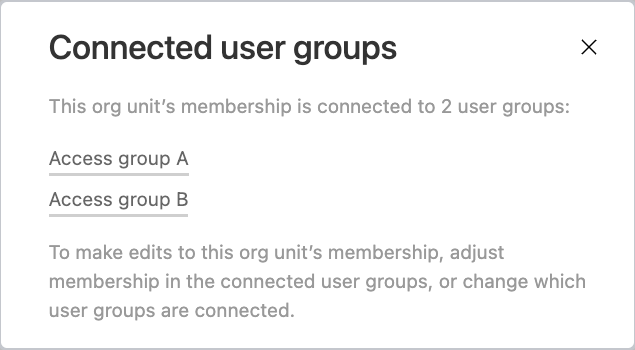
Click the “X members” icon to display all currently connected user groups. The X will vary depending upon the number of members that user group has.
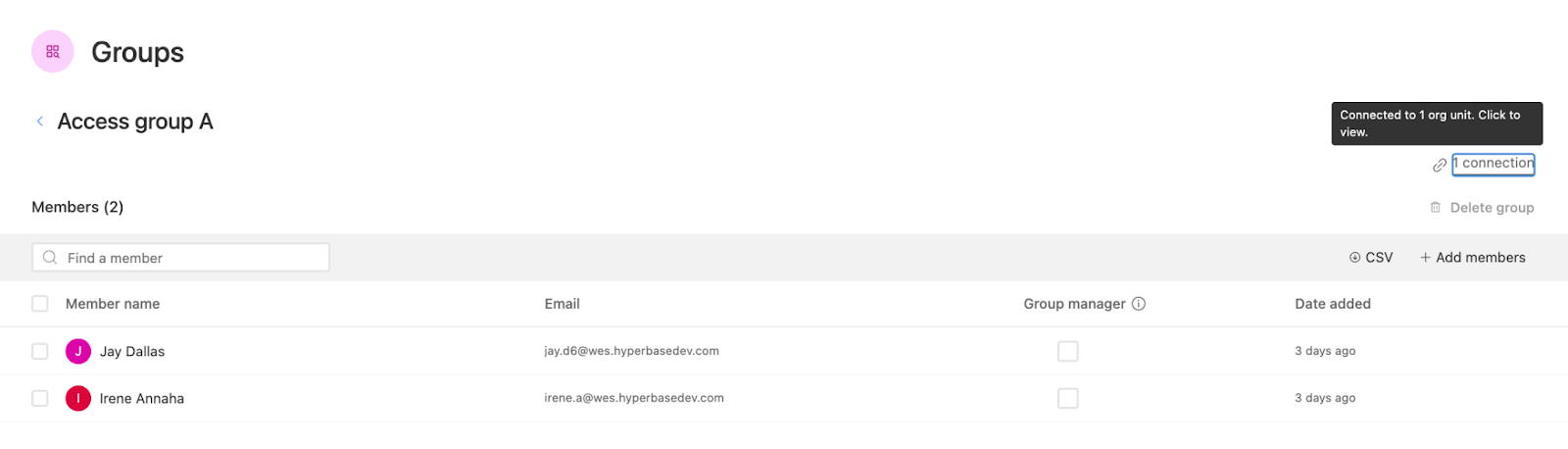
Click on a user group to show its detail page, which will display individual user data for the selected user group.