Managing enterprise admins in the admin panel
Last updated: August 11, 2026
Plan Availability | Business and Enterprise Scale plans only |
Permissions |
|
Platform(s) | Web/Browser, Mac app, and Windows app |
Adding admins in the admin panel
To add admins to the admin panel
Open your admin panel.
Click Users.
Click Invite users in the upper-right corner.
Click Send invitations.
Managing individual admins
If you need to grant or revoke admin access for a single user, then simply find the user by searching for their name or email address. To grant admin access, click the ellipsis (three-dot) to the right of their name. This will open a menu of actions. Click the "Grant Admin access" option. Note that "External" users cannot be granted admin access.
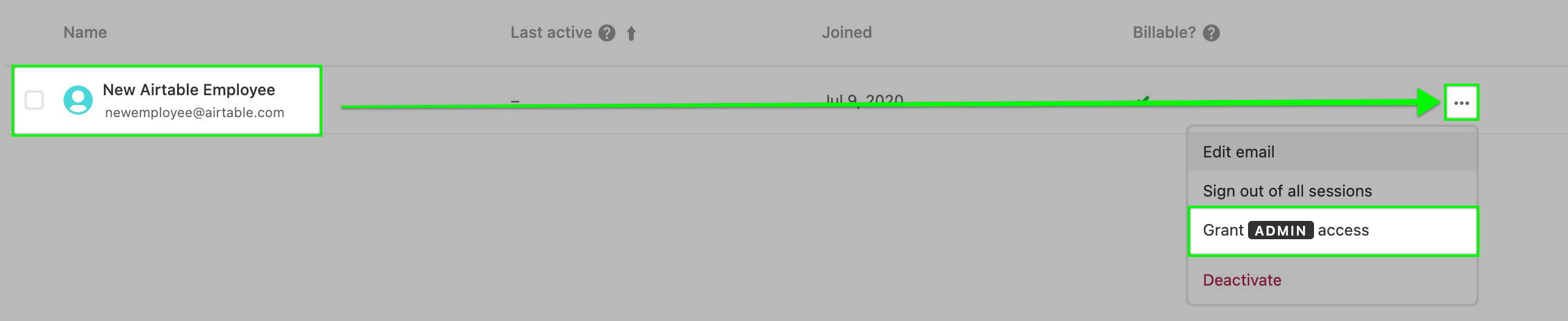
To revoke admin access, follow the same steps, but this time you will click the "Revoke Admin access" option.

The email you enter must be a user who is already a collaborator on your account. There is no functionality within the admin panel that allows admins to add new users to the plan. Any new user must be added via the normal flow of being invited to a base or workspace by an existing collaborator.
Managing multiple admins
If several users need to have admin access added or removed, then that is possible by performing bulk actions within the admin Panel. Admins can search, filter, sort, or scroll to find multiple users. As you are working through the various users needing their admin access granted or revoked, click the checkbox next to each user's name.
This will allow you to begin building an ad-hoc group of users:
To the top-right corner of the page, admins will see a blue "Actions" drop-down button appear. The current number of users selected will also appear.
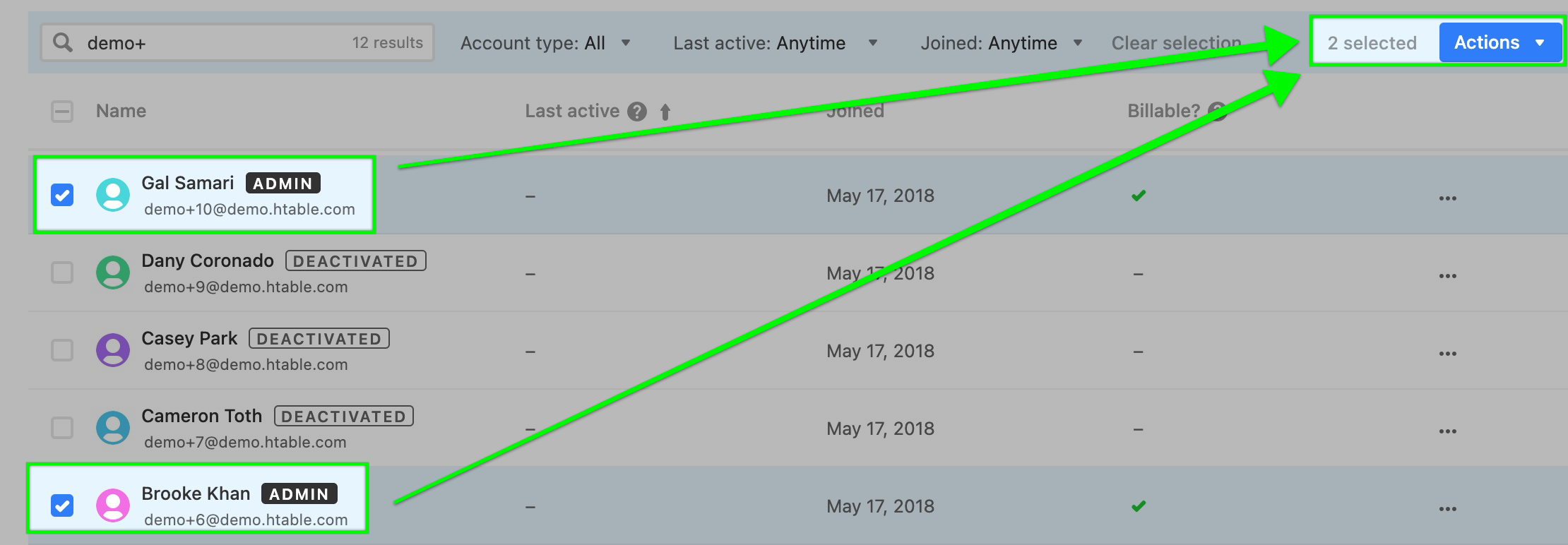
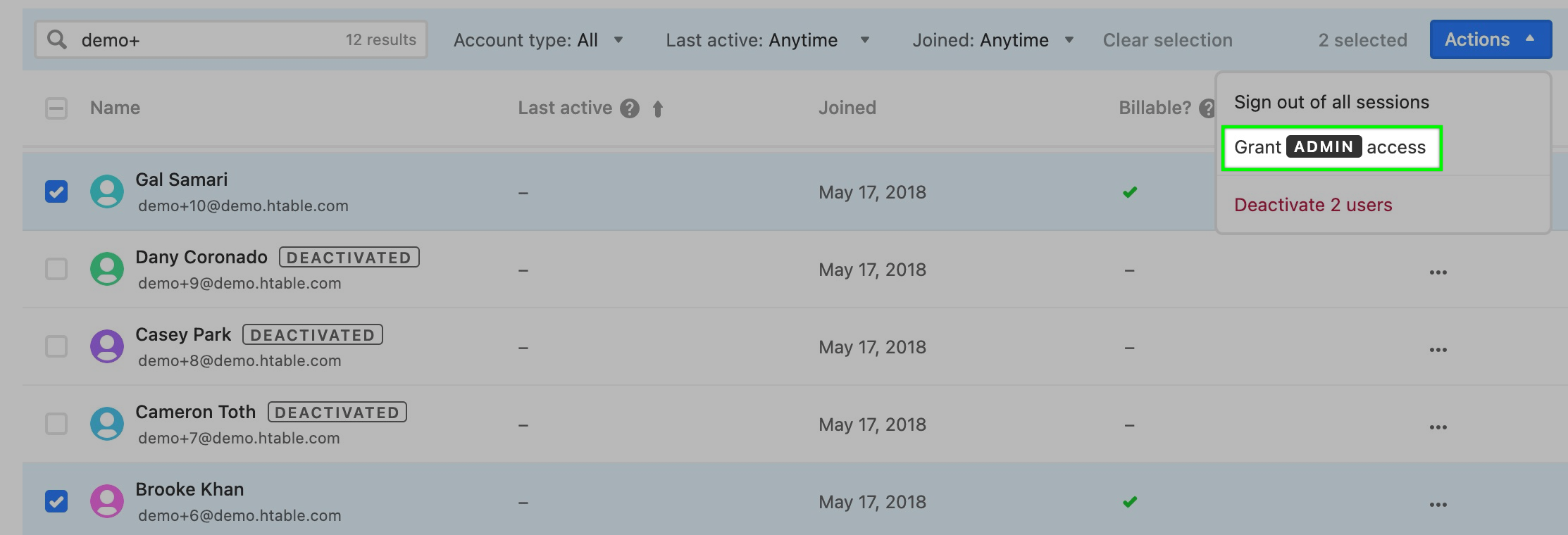
Once you've determined that all of the necessary users have been selected you can click the actions button and either provision (activate) or deactivate all of the users selected.
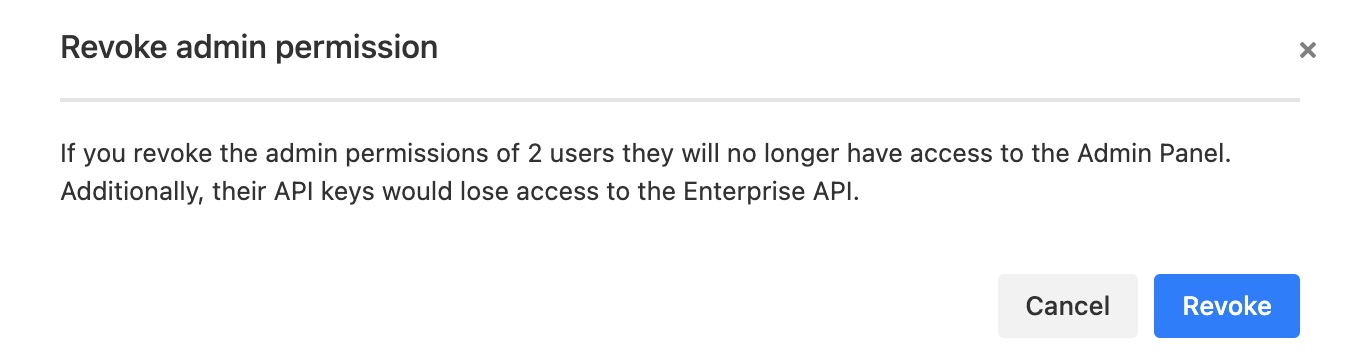
When revoking admin access, a confirmation pop-up box will appear asking you to confirm that you would like to revoke access for the user or users chosen.
If any of the users that you've selected have the "External" tag next to their name, then it will prevent them from being granted admin access.
FAQs
Am I able to remove my own admin privileges?
No, you will need to have another admin remove your privileges. If there are no other admins on your account, then you will need to add another admin before you can be removed.