Preventing automations from triggering by mistake
Last updated: October 15, 2026
Plan availability | All plan types with varying limitations |
Permissions |
|
Platform(s) | Web/Browser, Mac app, and Windows app |
Overview of preventing unintended automation runs
This article covers the setup process for adding a manual review process of a record before an automation runs. This approach can be helpful for many workflows where having someone personally review a record before running an automation is desired.
In this article, we'll apply this workflow to an example scenario where a marketing team wants to personally check that all invoice details for their contract writers are correct before sending them over to their accounting department.
Here's a summary of the workflow we'll create for this hypothetical marketing team:
Create a checkbox field to manually approve that the record is ready to be used in an automation
Configure a view to only show records with that field checked
Configure the automation to only run for records that appear in that view
Walkthrough: Preventing automations from running by mistake
Start by adding a new checkbox field and naming it Approve automation. This field would be checked off after the relevant information for each contracted article is reviewed.
Next, you'll need to set up a new filtered view that will be used to display only records that have Approve automation checked. As soon as that field is checked the record will filter into this view.
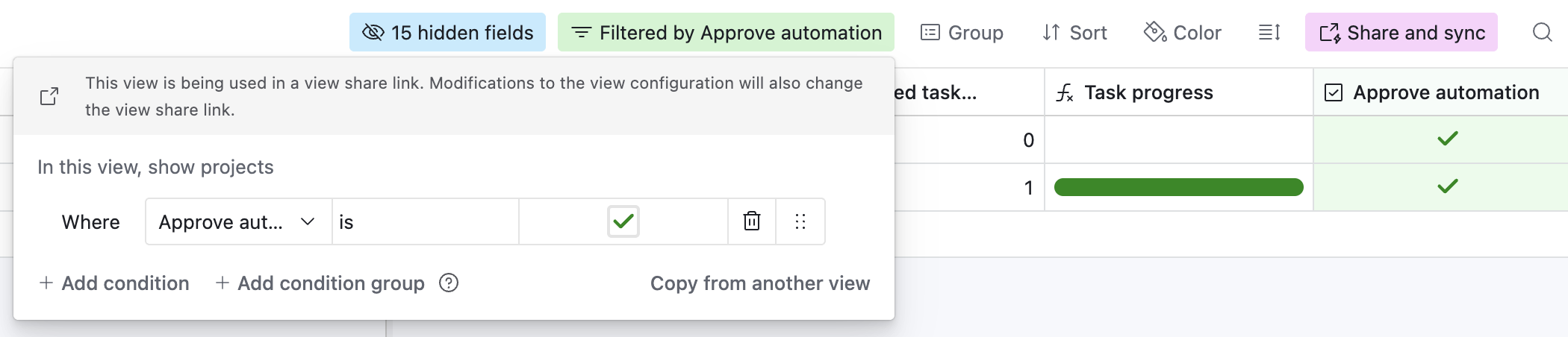
The next step is to setup an automation using the When a record enters a view trigger. Select the appropriate table and the Approved Timesheets view we just created. The automation will trigger (run) for every new record that is added to that view. As a reminder, records should only be added to that view once the Approve automation checkbox field is manually clicked.
We strongly recommend pairing the "When record enters view" trigger with a locked view. By using a locked view, or ensuring a locked field is involved, you can decrease the likeliness of accidentally changing a view's filtering (therefore avoiding accidental automation runs for unintended records that enter that view).
After you've configured and tested the trigger it's time to select an action. For more guidance on adding actions please see Creating an automation.
Diagnosing unexpected automation runs
If an automation runs when you didn't expect it to, check the following causes before you assume nothing changed.
Edits to a linked record's primary field count as updates to the linking records. A linked record field displays the primary field value of the record it links to. When someone edits that primary field, the linked record field changes on every record that links to it. If an automation uses the "When record updated" trigger and watches that linked record field, it runs once for each linking record. For example, if 8 records link to one record and someone renames the linked record, the automation runs 8 times.
Undoing a change counts as another change. If someone edits a primary field and then undoes the edit, each action updates the linked record field on every linking record, so the automation runs twice for each one.
Revision history might not show the change. Revision history combines an edit and its undo when the same person makes both within 5 minutes. The two changes cancel out, so the record can show no change even though the automation ran. If automation run history shows a run but revision history shows nothing, look for a combined edit and undo before you conclude that the automation ran without a trigger.
Another automation made the change. An Update record action writing to a watched field starts the automation again, and two automations on the same table that each write a field the other watches will loop. Check every automation on the table, not only the one that ran.
To reduce unintended runs:
Watch only the fields that should start the automation, and avoid watching a linked record field when you only care about changes in the current table.
Restrict edit access to primary fields that many records link to. For more information, see Using field and table editing permissions.
Add a condition to the automation so it skips records that already have the intended values. For example, add a conditional action that checks whether the values already match before the automation updates a record.
For more about why this trigger can cause multiple automation runs, see Airtable automation trigger: When record updated.
For more about what revision history records, see Record-level revision history in Airtable.
For other causes of unexpected runs, see Troubleshooting Airtable automations.