Configuring SSO with OneLogin
Last updated: September 17, 2026
Plan availability | Business and Enterprise Scale only |
Platform(s) | Web/Browser, Mac app, and Windows app |
Related reading |
Set up OneLogin SSO with an email attribute
Use this setup for a separate login identifier and email address, or to onboard external users. If you already have working SSO, start with Upgrade an existing SSO configuration. Basic email-NameID SSO instructions are in the collapsed section below.
Open the Airtable SAML application in OneLogin. You’ll need access to its SAML settings and your organization’s Airtable SSO settings, including a verified domain for the configuration.
Add an outgoing SAML attribute named
mailcontaining the user’s intended Airtable email address. Check that your app lets you edit that attribute, its ACS/recipient, and its audience.Choose a stable, unique NameID. For a non-email identifier, use Unspecified as its format. If you keep an email or UPN as the identifier, confirm whether that value will change during email or domain changes.
In Airtable, enter the IdP’s sign-in URL and X.509 certificate. Select V2, set Email attribute name to the exact outgoing attribute name from step 2, and save. See the Airtable setup instructions.
Copy the two values from the saved Airtable configuration into OneLogin:
Airtable field
OneLogin field
Reply URL (ACS)
ACS (Consumer) URL / Recipient
Audience URI (Entity ID)
Audience
Use the configuration-specific pair. Don’t combine the new ACS URL with a legacy Entity ID. If your IdP validates Airtable’s signed requests, use the corresponding V2 Airtable metadata/certificate.
Assign a test user and launch Airtable from the IdP. Complete any email confirmation and linking steps, then confirm the correct email and existing account content. Test Sign in with Single Sign On from Airtable as well.
Decide whether to turn on SSO required after testing. It is not required to enable SSO. For external users, follow the onboarding steps; the first unlinked sign-in starts from the IdP.
If your preconfigured app doesn’t expose the required attribute and endpoint settings, contact Airtable Support before changing an existing integration. If you use SCIM, preserve provisioning and align its userName mapping with the SAML NameID as part of the upgrade.
Basic OneLogin SSO with the legacy ACS URL
Use this path when the NameID is each user’s Airtable email address. Leave Email attribute name at Use NameID (default).
Use https://airtable.com/auth/ssoCallback as the ACS URL and the legacy Entity ID shown in the saved configuration:
https://airtable.com/sso/metadata.xmlfor V1or
https://airtable.com/sso/metadata0418.xmlfor V2
Setting up SSO for OneLogin
Before setting up SSO for OneLogin, ensure your OneLogin account is in "admin mode."
To set up SSO for OneLogin:
Login to OneLogin.
Click Apps, then Add Apps.
Search for and select "Airtable."
Add the "SAML2.0 app."
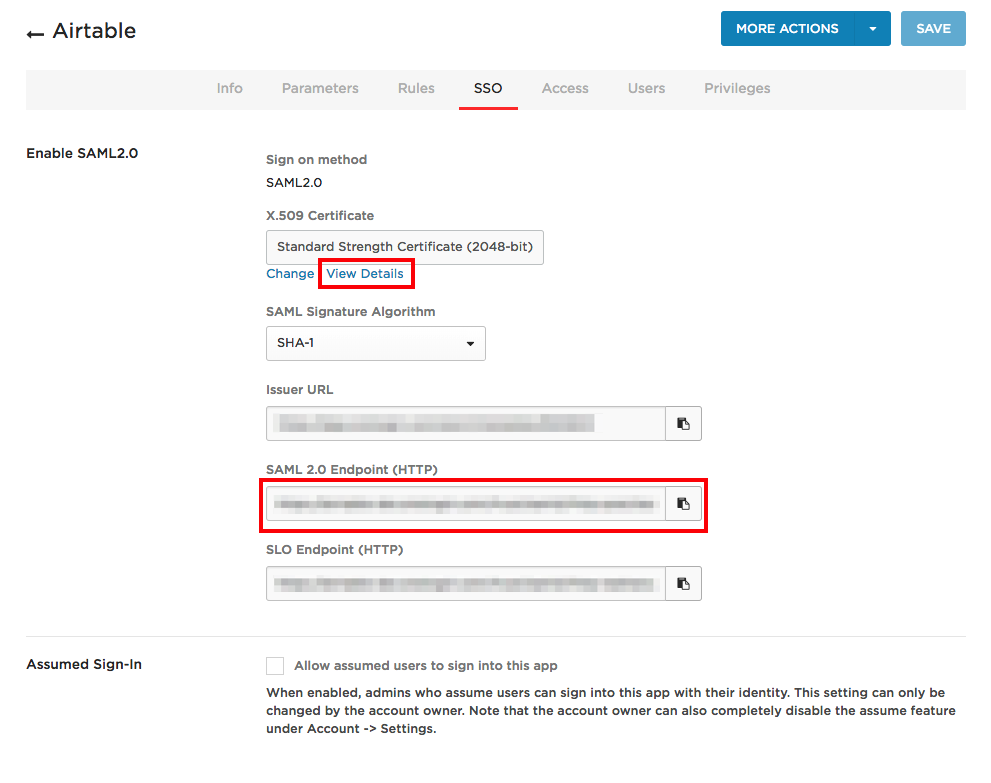
From the Airtable app page, click SSO.
Copy and paste the "X.509 Certificate" and the "SAML 2.0 Endpoint (HTTP)" as they are required for the next step.
Enter the "SAML 2.0 Endpoint (HTTP)" under "Sign On URL" and the "X.509 Certificate" under "x.509 Certificate", following the steps in the Configuring SSO in the admin panel article.
The ACS URL and Entity ID for your configuration are shown in the SSO configuration dialog in the admin panel.
Test both IdP-initiated and Airtable-initiated sign-in before choosing whether to require SSO.
FAQs
If another team in my company already uses SSO with Airtable, how does this impact my Business or Enterprise Scale account?
In Airtable, our system expects Enterprise Scale accounts using shared domains—domains federated to multiple Enterprise accounts—to use the same SAML metadata for SSO. What this means is that if your company has existing Enterprise Scale accounts with SSO configured, you will need to coordinate with the admins (or IT department) of the other accounts to obtain the current sign-in URLs, x.509 certificates, and ensure that your users have the necessary access to the Airtable tenant present in your company’s identity provider.
You can configure separate tenants or identity providers for domains unique to Enterprise Scale accounts, as each domain can be configured with its own SAML metadata.