Airtable Sync integration: Databricks
Last updated: August 8, 2026
Plan availability | Enterprise Scale plans only |
Permissions |
|
Platform(s) | Web/Browser, Mac app, Windows app |
The Databricks Sync allows you to sync the contents of a Databricks table, view, or the result of a custom SQL query to an Airtable base.
Databricks admin setup
Go to https://accounts.cloud.databricks.com/ and click on Settings and then App connections.
Click Add connection and enter the following info:
Application name: “Airtable”
Redirect URLs: https://airtable.com/integration/authorize/eatWydFvTi1heIsb1/callback
Access scopes:
sql&all-apis(Both of these scopes are necessary for the integration to work)Client secret: Select Generate a client secret
After clicking Add, you will get a
Client IDand aClient Secret. Copy these values for use in the steps below.
Adding the Databricks integration in Airtable
Navigate to your Airtable admin panel.
Click Settings from the sidebar, and then click Integrations & development.
Under the “Block integrations in automations and external source sync” section, click All integrations and allow Databricks.
Note that “All integrations" isn't visible if "Block integrations in automations and external source sync" is disabled. If that's the case, then you won’t need to specifically enable Databricks.
Under “Configure integrations,” go to Databricks and click Add configuration.
Select For in-base sync and click Next.
Enter a name for your configuration.
Enter the Databricks Account ID. This is found at the end of Databricks URLs:
https://accounts.cloud.databricks.com/?account_id=XXXEnter the Databricks workspace URL. This url looks like
https://your-workspace.cloud.databricks.com/.Enter the Databricks client ID and OAuth client secret that were generated in the Databricks admin setup step above.
Click Save.
After completing the setup, your Airtable users with Owner or Creator permissions will be able to use this configuration to connect to Databricks. If you have multiple Databricks accounts, repeat the Admin setup steps for each of them, choosing a different configuration name for each. Airtable users will be able to choose between the different configurations when adding a Databricks connection.
Adding a new Databricks synced table
From a new or existing base, find the + Add or import button next to the table furthest to the right. If you have 4 or more tables in your base, then this button will simply appear as a + plus sign.
Scroll down to the “Add from other sources” section and select Databricks.
Under “Databricks Account” select a previously connected account or click Connect new Databricks account.
From here, you’ll choose a Databricks account to connect to that has been set up by an admin in the steps described above. Click Continue after selecting an account.
A redirect warning will appear. Click Continue again.
You’ll then be prompted to log in to your Databricks account via SSO.
Next, select a Warehouse ID.
Now, you’ll select how you would like to bring in data for the sync. The options are:
Databricks table - Syncs all of the rows from an entire database table.
Databricks view - Syncs all of the rows from a specific view.
Custom SQL query - Syncs all of the data
Next, you will select a catalog name and then a schema name from Databricks.
If you choose to bring in data with a custom SQL query sync, then these selections will be optional.
If you choose to bring in data with a Databricks view, then you will also select a view name.
Once you have configured how you want to bring in data, click Next.
Now, choose a Unique field, a Primary field, and whether to bring in “All fields in the source and fields added in the future” or only “Specific fields in the source…” Then, click Next.
Before creating your synced table, there are options in the Settings section that allow you to choose whether or not you want to sync manually or automatically, and how to handle records deleted or hidden in the Databricks source.
Once you’ve selected your desired settings, click the Create table button. Depending on the size of the dataset being synced in from Databricks, it may take a few moments for the synced table to be created.
Databricks sync behavior and limitations
Sync frequency - The sync frequency can be configured to either occur manually (when selected in Airtable) or automatically, with an interval choice of 1, 3, 6, 12, or 24 hours.
Record limit and behavior when over limits - Databricks sync can sync up to 100,000 records into Airtable.
If the data source has more than 100,000 records, we only sync the first 100,000 records in the source to Airtable. If there is no sort order defined on the source, the records that are synced may not be deterministic.
For this reason, we recommend using a view with an
ORDER BYclause for datasets that exceed the record limit. If syncing using a custom SQL query, we recommend the query have anORDER BYclause.
Account expiration - By default, the Databricks refresh token TTL is 7 days. After 7 days, Databricks connections will expire and the user will need to reconnect in order to re-enable the sync. The refresh token TTL can be increased up to 90 days by editing the “App Connection” in the Databricks Settings panel.
Reconnecting an expired connection - When a Databricks sync is using an expired connection, a banner will be shown at the top of the synced table that looks like this:
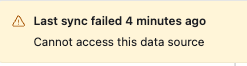
To reconnect:
Select Update sync configuration from the table’s drop-down menu.
This will open a popover where you will like see the following error:
Unable to sync this source. The selected account is not valid or no longer works.Click Reconnect.
FAQs
Why does my Databricks sync fail with "OIDC Single Sign-On authentication failed.” error?
The two Databricks integrations use different authentication methods, so success with one doesn't guarantee the other. The Databricks HyperDB integration authenticates with a service principal (account ID + service principal client ID/secret). The standard Databricks sync integration uses a user OAuth/OIDC SSO login that routes through your identity provider (e.g., Okta). An "OIDC Single Sign-On authentication failed" error occurs during that Databricks↔identity-provider sign-in, which is why the service-principal-based HyperDB connection can succeed while the SSO-based sync fails.
Because this error is generated in the Databricks/identity-provider authentication flow (not on Airtable's side), troubleshoot it there: confirm the Databricks OIDC/SSO configuration is the one you're actually authenticating against, that the issuer URL matches, and that the user is assigned to the Databricks application in your IdP. Databricks' own SSO documentation covers these requirements. Airtable Support can help with the Airtable side of the sync setup (the OAuth app's redirect URL, scopes, client ID/secret), but identity-provider and Databricks SSO configuration are managed in those systems.