Plan availability | All plan types |
Permissions |
|
Platform(s) | Web/Browser, Mac app, and Windows app |
Adding attachment fields in Airtable
Open your Airtable home screen.
Open the base where you want to add an attachment field.
Add or edit a field.
Search for and select Attachment.
Business/Enterprise only - Under “Format” select Files or Versions from the dropdown. Learn more about proofing/versions here.
Click Create field.
Uploading attachments in Airtable
Airtable supports individual attachments up to 5GB in size. You can upload any file type into an attachment field, but only certain file types can be displayed within Airtable. Learn more about supported file types.
Open your Airtable home screen.
Open your preferred base.
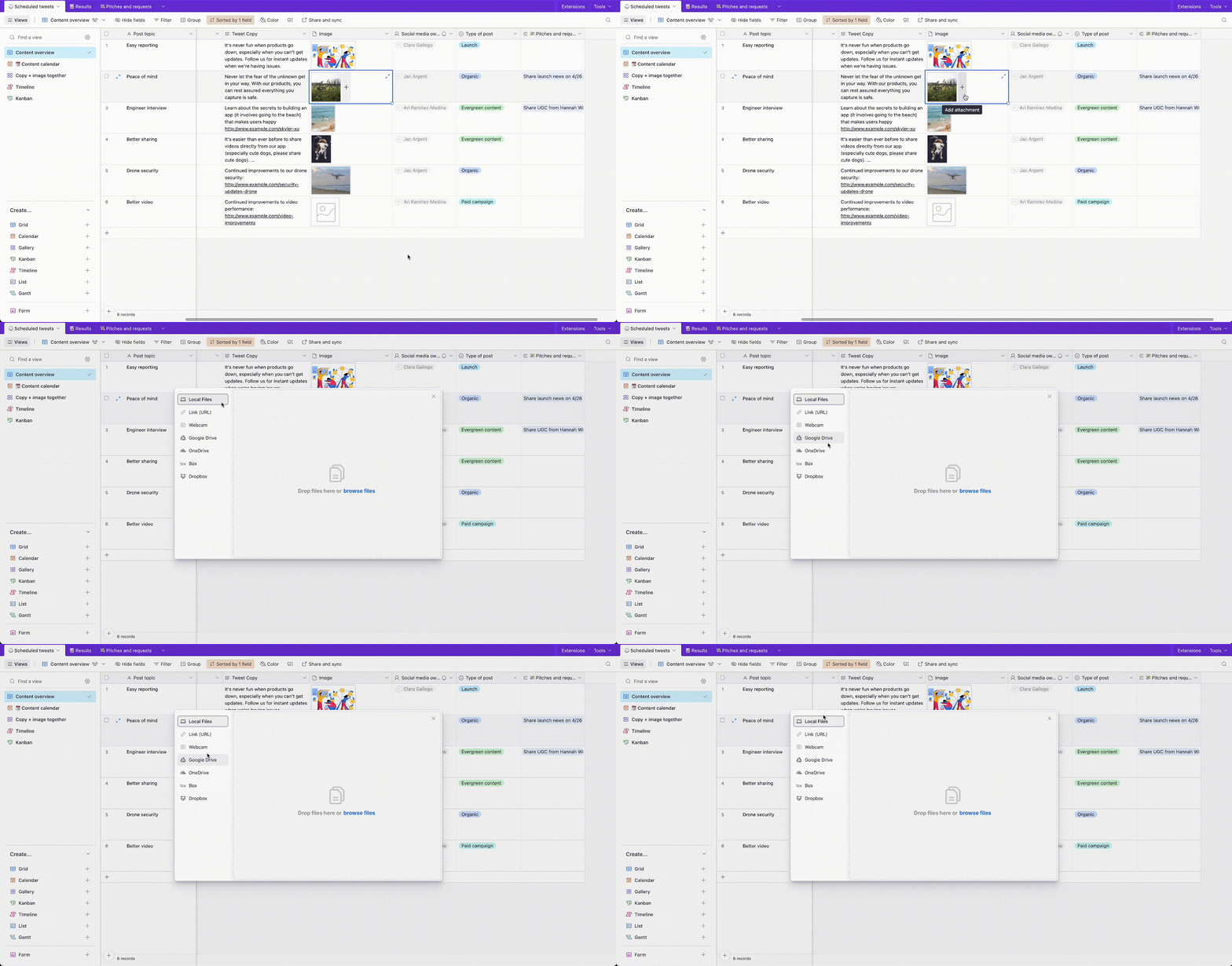
Click the + icon in the record where you want to upload an attachment.
A new window opens asking you to add an attachment—allowing you to upload from a variety of sources.
Note
To create new records by uploading attachments in bulk, you can drag and drop multiple files into the grid view. You can also use the Gallery view, which supports bulk attachment uploads for record creation—see the Gallery view article for details.
Downloading attachments in Airtable
Any base collaborator, of any permission level, can download the files stored in the attachment field if they have access to the base.
If you'd like to restrict who can download an attachment within a certain view, then we recommend creating a view share link with the "Allow viewers to copy data out of this view" option left toggled off.
To download an attachment from Airtable:
Open your Airtable homepage.
Open your preferred base.
Expand the record hosting the attachment you want to download.
Hover your cursor over the file name at the bottom of the record.
Click the download ꜜ icon.
Note
To download attachments in bulk, use the scripting extension with this script that you can copy and use in your base.
Renaming attachments in Airtable
Open your Airtable home screen.
Open your preferred base.
Expand the record hosting the attachment you want to rename.
Hover your cursor over the file name at the bottom of the record.
Click the rename icon.
Viewing attachments in Airtable
Open your Airtable home screen.
Open your preferred base.
Select the record with the attachment you want to view/review.
Click the arrow icon in the record’s top right corner to expand the record and attachment.
Note
A more detailed preview for specific file types is shown when clicking to view an attachment; otherwise, a placeholder image is displayed.
Airtable supports image file previews of basic image file types such as JPEGs, PNGs, GIFs, TIFFs, WebPs, and HEICs.
Airtable supports document file previews of PDFs, DOCs, PPTs, XLSs, and basic text files.
Airtable relies on browsers to play audio files and is limited by what they support—most browsers support MP3s and AACs. (More details here)
Airtable does not modify the underlying file, which can be retrieved through the download button. Sometimes, thumbnails or previews don't match the file's appearance in native software due to color profiles, resolution, fonts, etc.
Removing attachments in Airtable
Open your Airtable home screen.
Open your preferred base.
Expand the record hosting the attachment you want to remove.
Hover your cursor over the file name at the bottom of the record.
Click the remove icon.
Reordering attachments files in Airtable
Open your Airtable home screen.
Open your preferred base.
Expand the record hosting the attachments you want to reorder.
Drag and drop your preferred attachment to establish a different order.
Annotating attachments and comments in Airtable
Attachment annotations let you leave comments on individual attachments to give fast, clear, actionable feedback for collaborating.
Open your Airtable home screen.
Open the base containing the attachment(s) you want to annotate.
Select and open the record containing your preferred attachment(s).
Click on your preferred attachment to fully expand it.
Enter your comment in the “Leave a comment” section to the right of your selected image.

Not all file types are supported. Additionally, certain web browsers may limit the ability to annotate file types that are otherwise supported. Supported file types for annotation include:
Image types - JPEG, JPG, PNG, and GIF file types are supported.
Note that GIFs are treated like a static image and we do not support specific timestamps
Video types - Airtable supports videos that are renderable in the web browser being used to access Airtable. Primarily, we support H264 encoded mp4s.
Supported audio attachment file types
The table below shows commonly used audio file types and which browsers should support their playback. Our audio file support matches ExoPlayer's library.
Chrome/App | Safari | Firefox | Microsoft Edge | |
|---|---|---|---|---|
MP3 | ✅ | ✅ | ✅ | ✅ |
WAV | ✅ | ✅ | ✅ | ✅ |
FLAC | ✅ | ✅ | ✅ | ✅ |
M4A | ✅ | ✅ | ✅ | ✅ |
AAC | ✅ | ✅ | ✅ | ✅ |
MP4 | ✅ * | ✅ * | ✅ * | ✅ * |
OGG | ✅ | ✅ | ✅ | |
OPUS | ✅ | ✅ | ✅ | |
TS | ✅ | |||
AIFF | ✅ |
* File will play in an expanded record
Attachment limitations by plan type
The storage limitation for all attachments added to attachment fields in a single base varies by plan type:
Free - 1 GB per base
*Note that this will also reduce the size that a single attachment can be from 5 GB to 1 GB
Team - 20 GB per base
Business - 100 GB per base
Enterprise Scale - 1000 GB per base
FAQs
How are stored Airtable attachments accessed by colleagues and used by automations, API scripting, and other surfaces or third-party surfaces?
Please refer to this article that answers this question.
I’m using API to upload images to an attachment field and received a "Couldn't upload. Try adding again" error. What might be happening?
This issue often occurs when Airtable’s upload domain is blocked, resulting in a 403 error when attempting to upload images via URL. There are two potential solutions for this. You can either:
Download the desired image to a local device and then use drag and drop to upload the file directly to the attachment field in Airtable.
Use the direct attachment upload API if scripting is preferred. This option uploads attachments as a Base64 encoded string to an Airtable attachment field via this API endpoint.
Why does my account show attachment storage usage when I only see URLs in my data?
Airtable attachment fields store files like images, PDFs, videos, etc, directly on Airtable's servers. When you view your data in a CSV export or raw data view, those attachments appear as URLs pointing to the stored files, not as the files themselves. Your account's storage usage reflects the total size of all files stored behind those links, not just the links themselves.
How do I find which records have attachments?
In grid views, attachment fields display file thumbnails or icons directly in the cell. To see only records with attachments, create a filtered view where the attachment field "is not empty."
Can I bulk download attachments from my base?
No. Airtable doesn't have a built-in bulk download feature in the interface, but you can use the Scripting extension to download all attachments from a base at once.
Why do my Dropbox folders not appear or show "null" when I try to attach a file in Airtable?
There are two common causes:
Dropbox Business/Team account: Airtable's Dropbox file picker in the attachment field does not currently support Dropbox Business or Team accounts. If you're on a Business plan, the picker will fail to load your folders and may return "null."
If you’re on a Dropbox Business account account:
Download the file from Dropbox to your computer.
Upload it directly into the Airtable attachment field using the local file upload option.
Token refresh failure: If your Dropbox connection's access token can no longer refresh, the picker will also fail silently. This can happen with personal accounts after a period of inactivity or after a password change.
Why am I receiving the error "error uploading file" when trying to upload attachments, and how do I fix it?
When attachment uploads are blocked —and file size or type isn't the cause —the issue is most often the network or browser between you and Airtable rather than Airtable itself. Troubleshoot using these steps:
Try incognito/private mode. If uploads work there, a browser extension is interfering with the file picker — disable extensions one at a time to find it.
Test a different network. Switch to a home network, a different Wi-Fi, or a phone hotspot. If uploads work elsewhere, your original network is blocking them.
Check VPN, firewall, and security software. A VPN or corporate security tool can block the domain Airtable uses to upload attachments, leaving uploads stuck or failing.
Capture the developer console. With the console open (ideally in incognito), attempt an upload and note any errors — useful if you contact support.
If a network block is the cause, your IT team will need to allowlist Airtable's attachment-upload domain. For the current domains and network requirements to share with IT, refer to Airtable's network/allowlisting documentation.
Why are my upload files/attachments failing when I try to upload them in Airtable?
File uploads go to Airtable's attachment-upload storage domains, and on corporate networks the most common cause is a VPN, firewall, or web filter blocking those domains — which an internal IT check of "Airtable" generally won't catch, because the block is on the third-party storage endpoints, not airtable.com. Work through these:
Test in an incognito/private window. If the upload works there, a browser extension is interfering with the file picker — disable extensions to find the culprit.
Test on a different network (home, a café, or your phone's hotspot). If it works off the corporate network, the corporate network/VPN is blocking the upload.Allowlist the attachment-upload domains. Ask IT to allow these on the network/VPN:
You can sanity-check reachability by opening https://airtable-attachment-uploads-production.s3.amazonaws.com/ in a browser on the affected network.
Check the developer console during an upload attempt for errors (blocked requests/SSL failures) — these confirm a network/security block and are useful to share with support.
If uploads still fail after the domains are allowlisted and it's confirmed working off-network, contact support with the form link (if it's via a form), the file(s), your browser/OS, and a console screenshot or screen recording.
How do I download attachments in bulk, and name the exported files based on a field?
Airtable doesn't have a built-in one-click bulk-download button in the interface, but you have two options:
Native (first-party, free): the Scripting extension. Airtable provides a script you can add via the Scripting extension to download all attachments from a table/base at once. This is free and stays within Airtable, but it doesn't, by itself, rename files based on another field — see the Attachment field article for the script.
Third-party extension: Bulk Download Attachments (Airtable Marketplace). This community extension exports attachments from multiple records into a single ZIP, can be limited to a specific view, and can rename the exported files based on the value of another field (such as a formula) — which is how you'd name files after a parent/record value. It can also preserve original filenames and organize files into folders. Add it via Extensions → Add an extension → search "Bulk Download Attachments."
Keep in mind for the third-party extension: it's developed by a third party (miniExtensions), and bulk (multi-record) downloading requires a miniExtensions subscription, which is a cost outside your Airtable plan. Single-record downloads may be available without that. Because it's third-party, check its current status and pricing with the developer before building a workflow around