Plan availability | All plan types |
Permissions | Owners/Creators - Can create, delete, modify, and lock/unlock fields. |
Platform(s) | Web/Browser, Mac app, Windows app, and mobile support |
What is a gallery view?
Gallery view is a special type of view that represents your records as large cards. In particular, the gallery view highlights your attachments—images, documents, and more.
Creating gallery views
Note
After creating a gallery view, the base automatically selects the attachment field—if one exists—as the gallery's cover image.
Gallery views only allow you to view one record at a time.
To create a new gallery view:
Open your Airtable home screen.
Open the base where you want to create a gallery view.
Click + Create new…
Click Gallery.
Name your view and select who can edit it.
Click Create new view.
What are cover fields?
The cover field is a designated attachment field, the contents of which appear at the top of each gallery card. When creating a gallery view, if your table has at least one attachment field, the first attachment field will be automatically set as your gallery view's cover field.
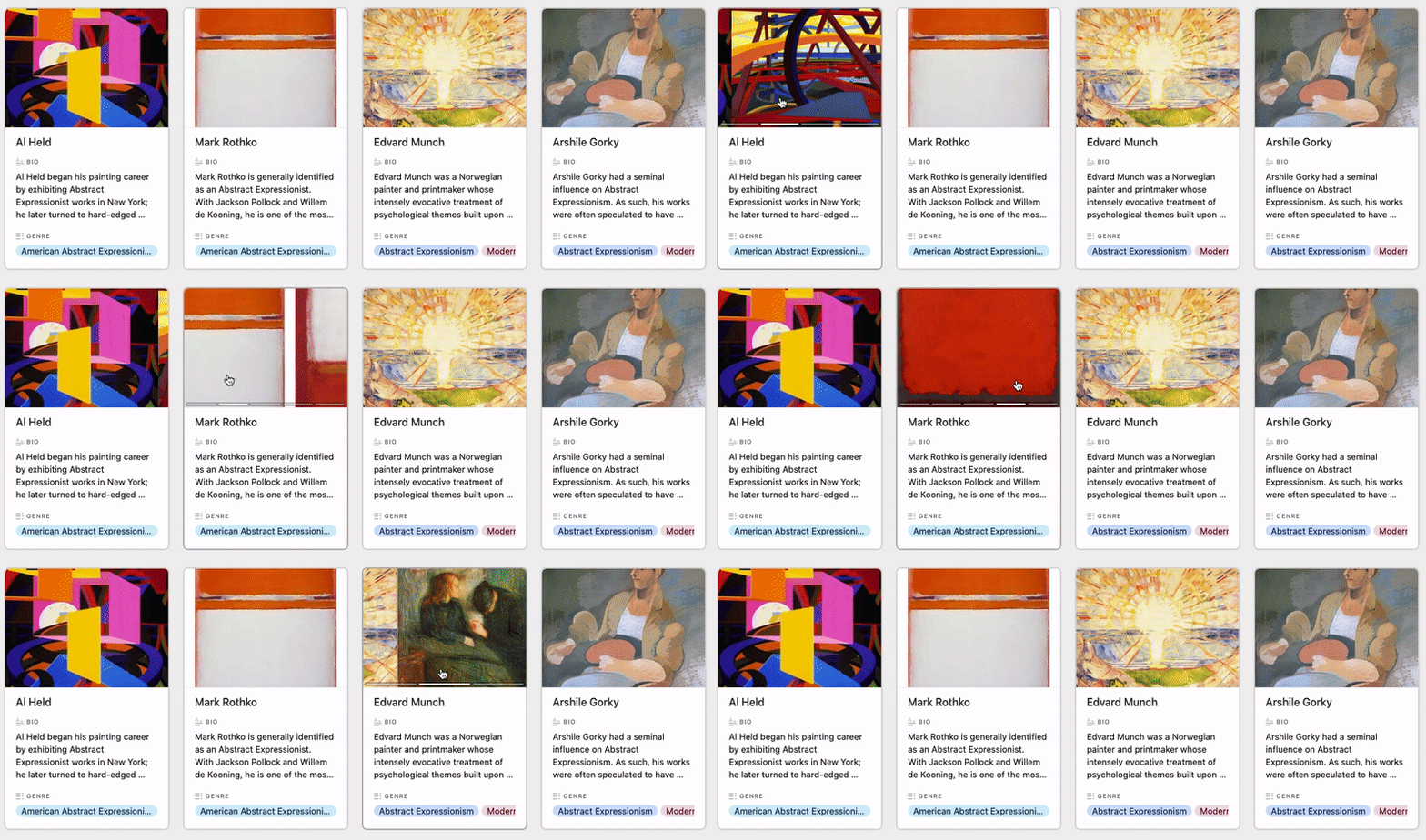
If you have multiple attachments in the cover field, you can mouse over the cover to scroll through the different attachments at a glance.
Adding attachments to cover fields
To add attachments to records in a gallery view:
Open your Airtable home screen.
Open the base with the gallery view you want to update.
Select the gallery view you want to update.
Drag and drop your records onto the cover field.
The “Crop” slider at the top of the “Customize cards” menu lets you choose whether the images in the cover fields will crop (fill the entire photo area by zooming and cropping) or fit (zoom out to show the entire photo).
Filtering and sorting in gallery view
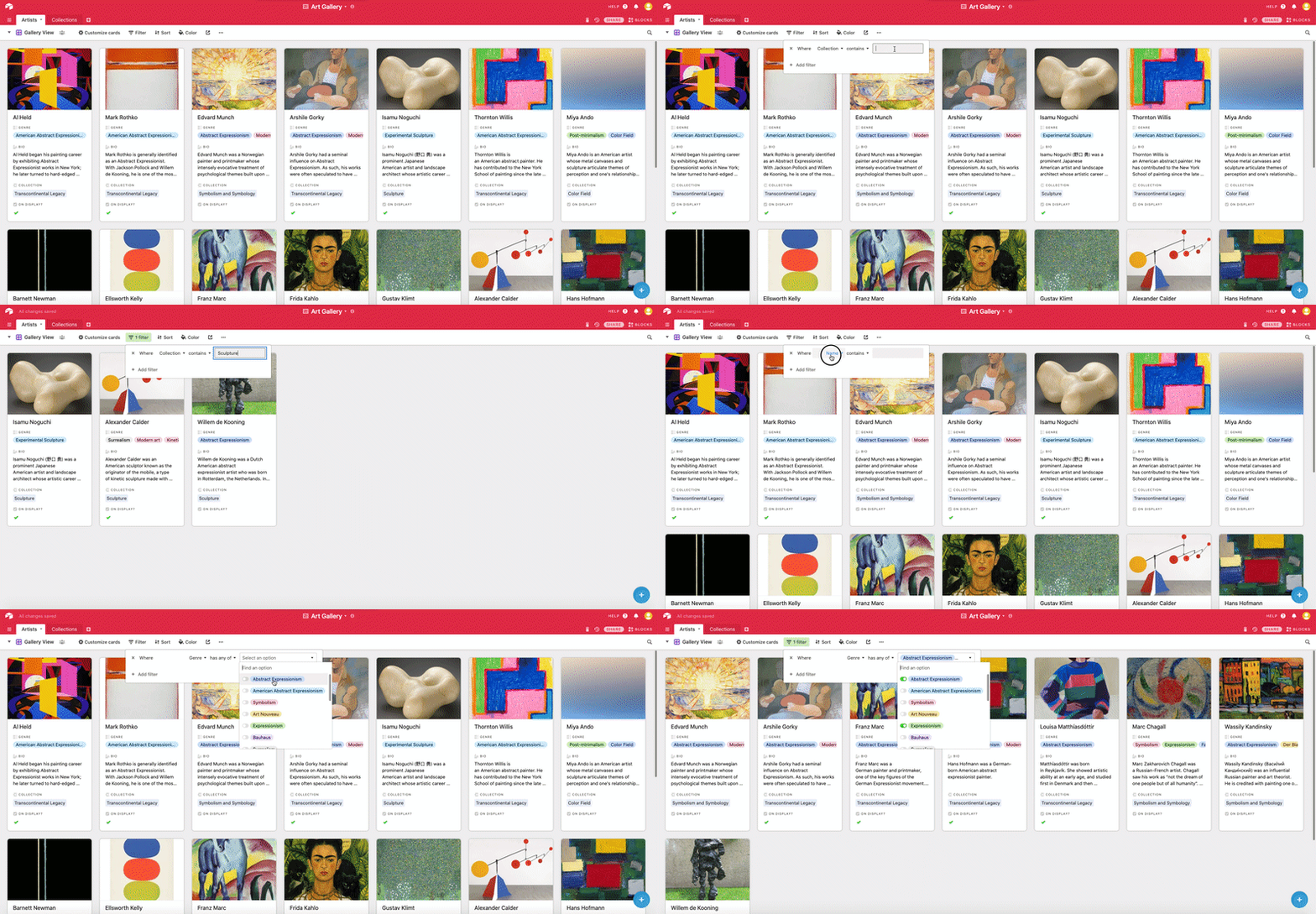
Filtering and sorting gallery cards works much like it does in grid view. To filter and sort records, click on the add filters and apply sort buttons in the view bar as necessary.
Hiding fields (customizing cards) in a gallery view
Unlike the grid view, the gallery view does not have a Hide fields button; instead, it has a Customize cards button. The Customize cards button lets you determine what fields are visible on your gallery view's cards.
When the Customize cards menu is open, you can see which fields are showing (where the toggle is green and switched to the right) and which fields are hidden (where the toggle is grayed out and switched to the left).
To hide or show a field on the cards, click the toggle next to the name of the field you want to hide or show.
You can also hide or show individual fields from the cards in your gallery view by clicking on a card to open up an expanded record.
The Hide all and Show all buttons will let you quickly hide/show all fields (except the primary field, which cannot be hidden).
If you have a large number of fields, you can type a search term in the Find a field search box to more easily find the field you're looking for.
By clicking and dragging the drag handles (six dot icon) next to the field names, you can quickly rearrange the order of the fields on the cards.
FAQs
How do I delete a gallery view?
Can I selectively hide a field when it doesn't contain a value?
We do not currently support conditionally showing/hiding fields within a view. One workaround to accomplish this would be to create separate views that respectively filter out records when a certain field is empty or filled.
Can I manually adjust the size of cards in my gallery view?
No. The card view in the gallery table cannot be customized to a custom size, as the layout automatically adjusts to fill the available space.
How do I bulk upload attachments in Airtable?
To bulk upload attachments in Airtable:
Open your Airtable home screen.
Open the base where you want to bulk upload attachments.
Select the attachments you want to upload.
Start by dragging your attachments into your base—but don’t release them until the “Drop here to create new record” box appears in the lower right of your base.
Click Create new record(s).